
Introduction
Moving a WordPress site used to be a high-stakes operation involving manual SQL exports, FTP transfers, and the constant fear of the “White Screen of Death.” All-in-One WP Migration changed that landscape by promising a “zero-code” migration experience. But in a world of cloud-native hosting and automated staging, does this veteran plugin still hold its own in 2025? In this review, we break down its architecture, feature set, and whether it’s worth the premium price tag.
What is All-in-One WP Migration?
Launched in 2013 by ServMask, All-in-One WP Migration is a comprehensive portability tool for WordPress. Unlike traditional backup plugins that simply save files, this tool bundles your entire ecosystem—database, media library, themes, and plugins—into a proprietary .wpress file.
This single-file approach makes site “cloning” as simple as moving a document from one folder to another. By abstracting the complex relationship between the file system and the SQL database, the plugin ensures that your site remains functional even when moving between vastly different server environments.
Core Functionality & Technical Highlights
Key Features of All-in-One WP Migration
Here are some of the standout features that make All-in-One WP Migration a popular choice among WordPress users:
- One-Click Website Migration
The plugin allows you to package your entire WordPress site into a single .wpress file with just one action. This export includes your database, media files, themes, plugins, and site settings, making migrations fast and hassle-free.
- User-Friendly Import System
Restoring or moving a site is extremely straightforward. You simply upload the .wpress backup file through the Import screen, either by dragging and dropping it or selecting it manually, and the plugin handles the rest.
- Beginner-Friendly with No Technical Barriers
All-in-One WP Migration removes the need to work with FTP clients, databases, or server-side configurations. Even users with little to no technical background can confidently move or restore a WordPress site.
- Works with Almost Any Hosting Provider
The plugin is designed to function smoothly across a wide range of hosting environments, including shared hosting, VPS setups, managed WordPress hosting, and dedicated servers.
- Flexible Export and Import Controls (Premium)
By using premium extensions, you can fine-tune what gets included in your backup or migration. This allows you to exclude or include specific elements such as plugins, themes, or selected database tables.
Premium Add-Ons and Extensions
For users who need advanced functionality, the plugin offers paid extensions that unlock additional capabilities, including:
- Removal of file size limits for imports and exports
- Direct backups to cloud storage services like Google Drive, Dropbox, and OneDrive
- Full WordPress Multisite compatibility
- Automatic scheduled backups
- Advanced database export and filtering options
Installation and Setup Guide (Step-by-Step)
Below is a simple walkthrough explaining how to install and start using the plugin. You can pair each step with screenshots for better clarity.
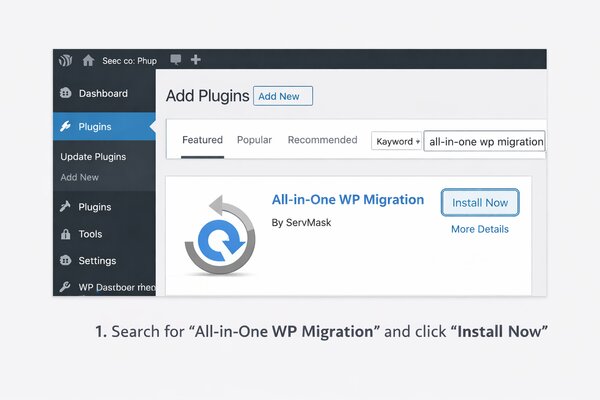
- Install the Plugin from the WordPress Dashboard
- Sign in to your WordPress admin area
- Navigate to Plugins → Add New
- Search for “All-in-One WP Migration”
- Click the Install Now button
- Once installed, click Activate
- Open the Plugin Menu
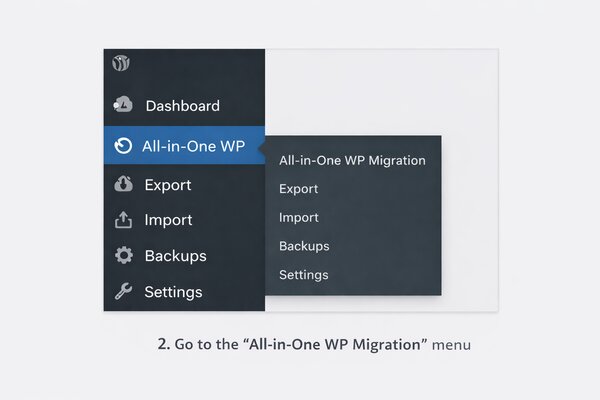
After activation, a new menu item appears in your WordPress dashboard sidebar.
- Locate All-in-One WP Migration in the left-hand menu
- Click it to access Export, Import, Backups, and Settings options
- Export Your WordPress Website
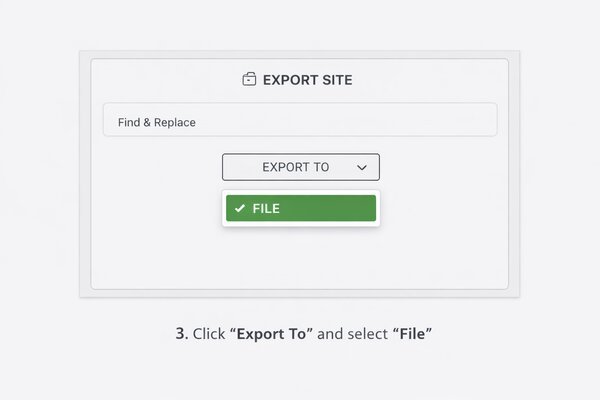
To create a backup or prepare your site for migration:
- Go to All-in-One WP Migration → Export
- Click Export To
- Select File as the export method
- Wait for the process to complete and download the generated .wpress file
This single file contains everything needed to recreate your website on another WordPress installation.
- Import the Website on Another WordPress Site
On the new or destination WordPress site:
- Install and activate the All-in-One WP Migration plugin
- Open All-in-One WP Migration → Import
- Drag and drop the .wpress file into the import area (or upload it manually)
The plugin will automatically restore the site. Once finished, the new website will be an exact copy of the original.
Deep Dive for Developers: Advanced Features
While the plugin is marketed as beginner-friendly, it contains several “power user” features that make it a favorite for agencies and freelancers.
- Custom Archive Format (.wpress)
The plugin uses a custom-built, open-source archive format. This format is memory-efficient, meaning it can bundle huge websites even on low-cost shared hosting with limited PHP memory. For those who want to see what’s inside without importing, tools like the Traktor Web Tool allow you to extract specific files from a .wpress archive locally. - WP-CLI Integration
For developers who prefer the command line, the premium versions offer full WP-CLI support. This allows you to automate migrations via scripts or terminal commands, which is perfect for deploying staging sites to production in a CI/CD pipeline. - Database Compatibility
Whether your source site uses MySQL, MariaDB, or the lightweight SQLite (which is trending for headless WordPress setups in 2025), All-in-One WP Migration handles the translation between these database types seamlessly.
The Premium Ecosystem: Choosing Your Extensions
The core plugin is free, but the “Trend” in modern WordPress tools is a modular model. Here is a breakdown of what the premium add-ons offer:
- Unlimited Extension ($69/year): This is the most popular add-on. It removes the 512MB import limit, allows for server-to-server imports, and includes WP-CLI commands.
- Cloud Storage Add-ons ($99/year each): These allow you to push your backups directly to Google Drive, Dropbox, Amazon S3, or OneDrive.
- Multisite Extension: Necessary if you are moving a site into or out of a WordPress Multisite Network. It handles the complex “ID remapping” required for network migrations.
Technical Walkthrough: Getting Started
- Deployment
Locate the plugin via Plugins → Add New in your WordPress sidebar. Search for “All-in-One WP Migration,” install, and activate. - The Export Phase (Optimization)
Navigate to the plugin’s dedicated menu. Select “Export To” and choose “File.” > Developer Insight: Click on “Advanced Options” before exporting. Here, you can exclude spam comments, post revisions, and even the media library. Excluding the media library is a “pro move” if you plan to move images manually via FTP to keep the .wpress file small and fast. - The Migration/Import Phase
On your fresh WordPress installation, repeat the installation process. Go to the Import tab and upload your .wpress file. The plugin will overwrite the existing database and files to create an exact mirror of your source site.
Troubleshooting: Fixing the “Stuck at 100%” Error
A common issue users face is the import getting “stuck” at 100%. This is usually not a plugin bug but a server-side limitation.
To fix this, you may need to edit your .htaccess or wp-config.php file to increase your limits:
Apache
php_value upload_max_filesize 512M
php_value post_max_size 512M
php_value memory_limit 256M
php_value max_execution_time 300
By increasing these values, you give the server the “breathing room” it needs to decompress the large archive.
Competitive Analysis: All-in-One vs. The Field
| Feature | All-in-One WP Migration | Duplicator | UpdraftPlus |
| Best For | Ease of use & quick moves | Complex migrations & large sites | Scheduled |
| Restore Method | Inside WP Dashboard | via installer.php (No WP needed) | Inside WP Dashboard |
| File Format | Proprietary .wpress | Standard .zip | Multiple .zip files |
| Free Limit | 512MB (Import only) | Unlimited (No cloud) | Unlimited (No migration) |
Is it Worth It in 2025?
All-in-One WP Migration remains a top-tier choice for its reliability. While the proprietary format and the 512MB limit in the free version can be frustrating, the speed at which it “just works” is unmatched.
Use it if: You are a freelancer moving client sites or a blogger switching hosts who doesn’t want to touch a single line of code. Skip it if: You are on a strict $0 budget for a site larger than 512MB, or if you prefer working with standard .zip files for your backups.
Final Thoughts
Whether you’re changing hosts, cloning a staging environment, or just need a reliable backup plan, All-in-One WP Migration and Backup is one of the most popular tools in the WordPress ecosystem. It is fast, intuitive, and versatile—a true industry veteran that has stayed relevant by keeping things simple.