
Tracking website performance is no longer optional—it’s essential. Whether you run a blog, a business website, or an eCommerce store, understanding how visitors interact with your WordPress site helps you make smarter decisions, improve user experience, and increase conversions.
In 2026, data-driven optimization is the backbone of online success. But constantly logging into Google Analytics (especially GA4) can feel overwhelming for many WordPress users.
That’s where a Google Analytics dashboard plugin for WordPress comes in handy.
In this updated guide, we’ll explore why Google Analytics still matters, how viewing analytics directly inside WordPress can save time, and why a lightweight metrics plugin—like Google Analytics by Lara—is still worth considering for site owners who want clarity without complexity.
Why Google Analytics Still Matters in 2026
Google Analytics (now fully powered by Google Analytics 4 – GA4) remains one of the most powerful tools for understanding website traffic and user behavior.
With the right analytics setup, you can:
- Identify where your traffic comes from
- Understand what content performs best
- Measure user engagement instead of just pageviews
- Improve SEO and conversion rates
- Make informed content and marketing decisions
Key Insights Google Analytics Provides
Even at a high level, Google Analytics helps you track:
- Traffic trends over time
- User behavior across pages and devices
- Acquisition channels (search, social, referrals, ads)
- Engagement metrics like session duration and bounce rate
- Conversions and goals, such as form submissions or purchases
For marketers and analysts, GA4 offers deep customization. But for many WordPress site owners, that level of detail can feel overwhelming.
The Problem: Google Analytics Can Be Overkill for Daily Monitoring
If you’re not a data analyst, you probably don’t want to:
- Log into GA4 every day
- Navigate complex reports
- Build custom dashboards just to see basic metrics
Most website owners simply want quick answers to questions like:
- How many people visited my site today?
- Is my traffic growing?
- Are users engaging with my content?
- Is my bounce rate improving?
This is where a WordPress Google Analytics dashboard plugin becomes extremely useful.
What Is Google Analytics by Lara?
Google Analytics by Lara is a lightweight WordPress plugin that displays essential Google Analytics metrics directly inside your WordPress dashboard.
Instead of switching between platforms, you get a clean, centralized overview of your site’s performance as soon as you log in to WordPress.
Key Benefits at a Glance:
- Free and easy to set up
- Works directly inside the WordPress admin panel
- Ideal for beginners and non-technical users
- Focuses on actionable, high-level metrics
Metrics You Can View Inside WordPress:
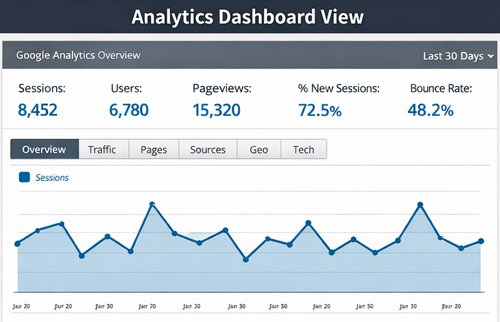
Once connected, the plugin shows key performance indicators for your website (typically over the last 30 days), including:
- Sessions
- Users
- Pageviews
- Percentage of New Sessions
- Bounce Rate
- Average Session Duration
- Pages per Session
These metrics provide a clear snapshot of your site’s overall health—without overwhelming you with unnecessary data.
Premium Features (For Advanced Insights):
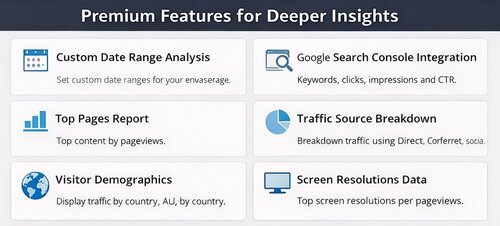
For users who want deeper visibility without using the full Google Analytics interface, the premium version adds valuable features such as:
- Custom date range analysis
- Integration with Google Search Console
- Most visited pages
- Traffic source breakdown
- Visitor location and language data
- Browser, OS, and device insights
- Screen resolution analytics
This makes it a solid middle ground between “basic overview” and “full analytics suite.”
How to Set Up Google Analytics by Lara in WordPress
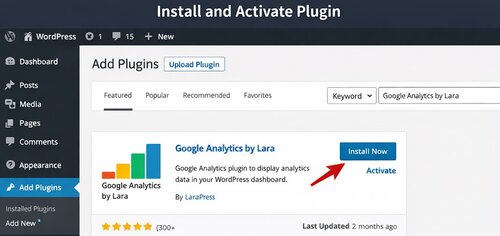
Step 1: Install and Activate the Plugin
- Go to your WordPress Dashboard
- Navigate to Plugins → Add New
- Search for Google Analytics by Lara
- Click Install Now, then Activate
Once activated, the analytics widget automatically appears on your dashboard.
Step 2: Connect Your Google Analytics Account
The plugin offers two setup options:
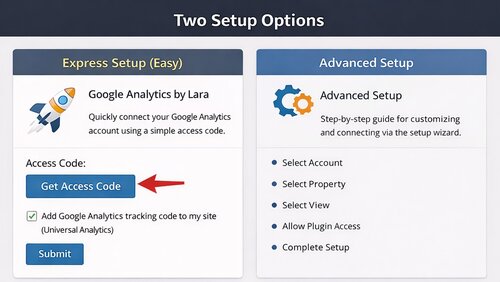
Express Setup (Recommended)
This is the fastest and easiest method:
- Click Get Access Code
- Sign in with your Google account
- Allow access to your Analytics data
- Paste the access code into the plugin
- Select your website’s GA profile and save
You can also enable automatic tracking code insertion, which is helpful if GA isn’t already installed on your site.
Advanced Setup
The advanced setup walks you through a multi-step configuration process. While more customizable, it’s best suited for experienced users. Most site owners will find Express Setup more than sufficient.
Understanding the Key Metrics (Simplified)
- Sessions
A session represents a visit to your website. Multiple actions within a short timeframe count as one session. This helps you understand overall engagement trends.
- Users
Users are unique visitors. Tracking this metric helps you see whether your audience is growing, shrinking, or staying consistent.
- Pageviews
This metric shows how many pages were viewed in total. It’s especially useful for content-heavy and monetized websites.
- Pages per Session
Higher pages per session usually indicate stronger content engagement and better internal linking.
- Average Session Duration
The longer users stay, the more relevant and engaging your content is—an important signal for SEO and conversions.
- Bounce Rate
Bounce rate shows the percentage of users who leave without interacting further. A high bounce rate may indicate issues with page speed, content relevance, or user experience.
- Percentage of New Users
This metric helps you understand how well your SEO, social media, and marketing efforts are attracting fresh visitors.
Is Google Analytics by Lara Still Worth Using in 2026?
Yes—if your goal is simplicity.
While advanced marketers may prefer dedicated GA4 dashboards, many WordPress users benefit from a plugin that:
- Saves time
- Reduces complexity
- Keeps key metrics visible daily
- Encourages consistent performance monitoring
It’s especially useful for bloggers, small businesses, freelancers, and content creators who want insights without distraction.
Final Verdict
WordPress makes it easy to build a website—but growing and maintaining one requires data-driven decisions.
If you want a quick, reliable overview of your website’s performance without diving into GA4 every day, a WordPress dashboard analytics plugin like Google Analytics by Lara is absolutely worth considering in 2026.
Seeing your metrics front and center helps you stay accountable, spot trends early, and continuously improve your site—without feeling overwhelmed by data.
Your Turn
Do you prefer checking analytics inside WordPress, or do you still rely on the full Google Analytics dashboard?
Share your experience and thoughts in the comments—we’d love to hear from you!